






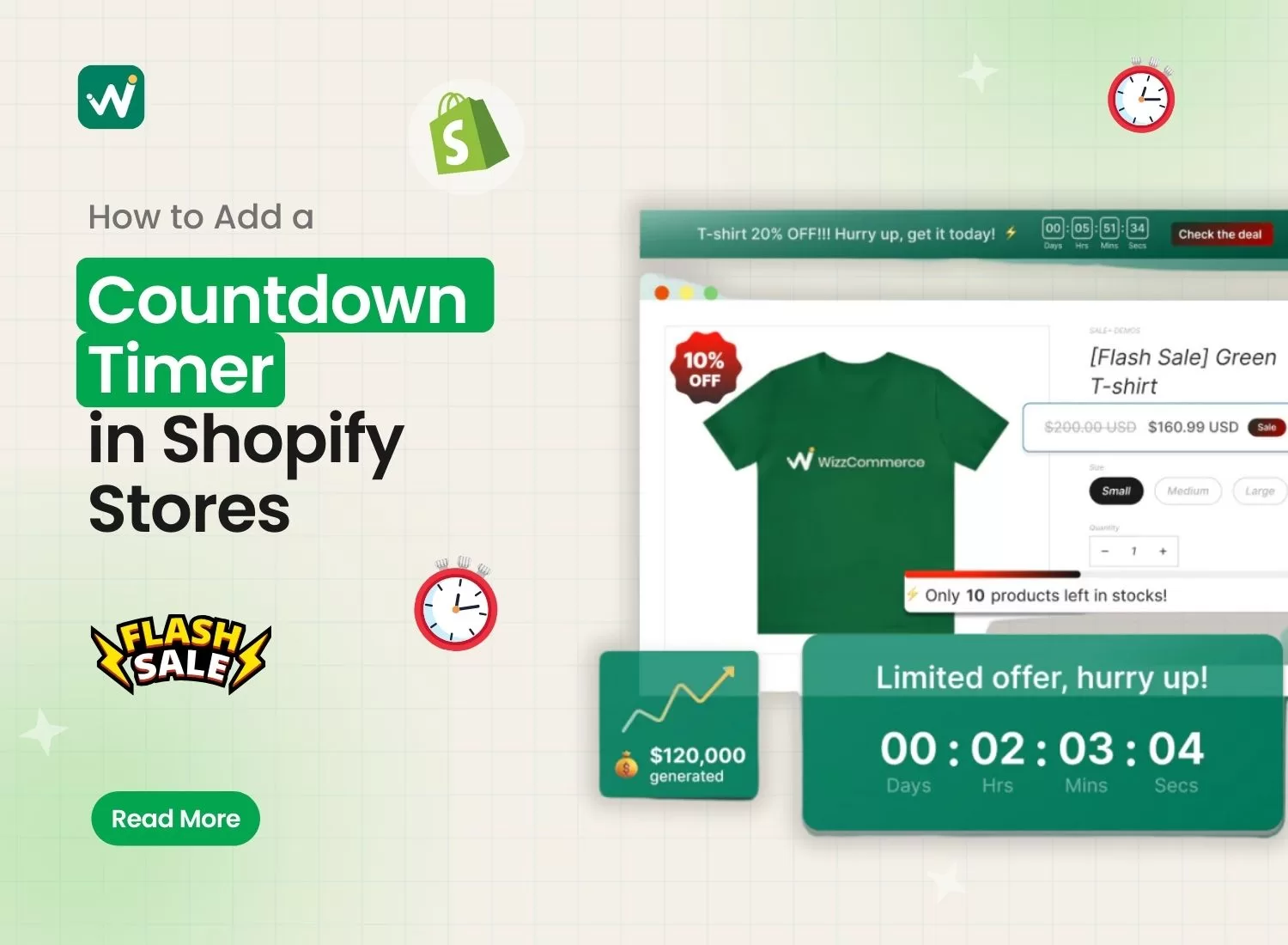
How to Add a Flash Sale Countdown Timer in Shopify: A Simple Guide
A countdown timer isn't just a flashy feature—it’s a proven sales-boosting tool. If you're looking to boost your Shopify sales and create some serious FOMO (Fear of Missing Out), you're in the right place. I'm going to walk you through everything you need to know about adding countdown timers to your Shopify store – and trust me, it's easier than you might think!

2 Methods to Set Up a Countdown Timer in Shopify
Method 1: The "I Want It Easy" Way (Using Shopify Free Apps)
Look, if you're like most store owners, you want something that just works without needing a computer science degree. That's why I recommend starting with apps. Let's dive into the star player in this space:
Top Pick: Wizz Flash Sale & Discount
This app is currently crushing it with a 4.7/5 rating from 85 reviews. Here's what makes it special:
Free Plan Features:
- Unlimited active tasks (yes, really!)
- Support for up to 50 product variants
- Basic product filtering
- Live chat support (though you might wait a bit longer)
Why Choose Wizz?
- Run flash sales, daily deals, bulk discounts, and more.
- Choose from various countdown timer styles.
- Includes countdown timers, stock counters, and sale badges.
- Automatically updates and reverts pricing post-sale.
- Schedule daily, weekly, or monthly flash sales effortlessly.
Set Up a Countdown Timer with the Wizz Flash Sale App
- On the app's dashboard, select Run Flash sale > Create task
- Task configuration
- Name your campaign
- Select products
- Set discount rule, e.g: 10%
- Set revert price rules when the campaign ends
- Select the stock progress bar & flash sale badges (optional)
- Schedule your discount > You must tick ✅ Display countdown timer
- To adjust the countdown timer color, text, etc > Go to the setting on left side bar
- Save your task > See what it is displayed


Method 2: The "I Like to Code" Way (For Developers)
Want more control over the design and functionality? Adding a custom countdown timer using Shopify’s Liquid code gives you full flexibility.
For my tech-savvy friends out there, here's how to add a custom countdown timer using Liquid code:
Navigate to Your Theme: Go to Shopify Admin > Online Store > Themes.
Edit Code: Click “Actions” > “Edit Code.”
Add the Countdown Code: In your
theme.liquidor desired section, paste the following code:
					{% comment %}
  Add this to your product.liquid or wherever you want the timer
{% endcomment %}
  d
  h
  m
  s
4. Save and Test: Save your changes, refresh your store, and watch the countdown in action.
💢 Caution: The code snippets provided above are for demonstration purposes. Implementing them requires technical expertise. Always duplicate your theme before adding or editing code to ensure you have a backup in case of issues. Test thoroughly to minimize risks.
How to Add a Countdown Timer to Shopify’s Announcement Bar
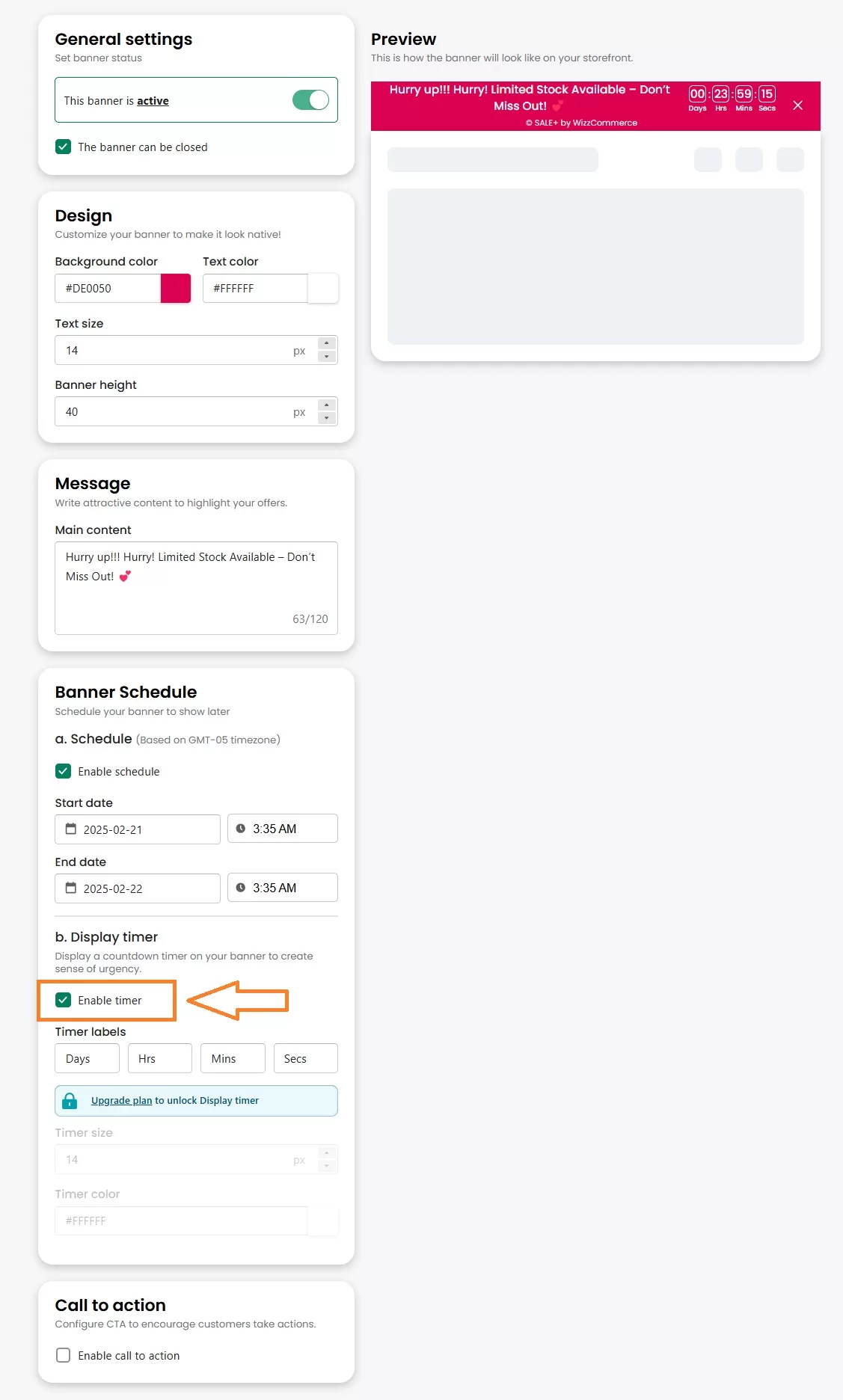
If you want to grab your customer's attention as soon as they arrive on your page, adding a countdown timer to your Shopify announcement bar is an effective strategy. The Wizz Flash Sale & Discount app can assist you with this task. Just follow a few simple steps:
- On the Setting section on the left sidebar > Select the Promotion banner
- Configure the design: color, text size, banner height, text message
- Tick ✅ Enable schedule > Enable timer
- Save and view the result
Pro Tips for Making Your Timer Convert Like Crazy
Think of your countdown timer like a billboard – location matters! Here's where they work best:
- Homepage Hero Section: Grab attention right away
- Product Pages: Right near the "Add to Cart" button
- Announcement Bar: Perfect for store-wide sales
- Cart Page: Reduce cart abandonment
- Pop-ups: For flash sales and special offers
Your timer should look good AND perform well. Here's what works:
- Colors: Use your brand colors, but make sure the timer stands out
- Size: Big enough to notice, small enough not to annoy
- Font: Clear and readable (this isn't the time to get fancy)
- Contrast: Make those numbers POP
- Mobile-friendly: Test on different devices (seriously, do this!)
Don't just set it and forget it! Here's what you should be testing:
Timer Placement Tests:
- Above product title vs. below
- In announcement bar vs. popup
- Near price vs. near add-to-cart button
Design Tests:
- Color combinations
- Size variations
- With/without labels
- Different countdown formats
Message Tests:
- "Sale ends in..." vs. "Only XX hours left!"
- Including shipping cutoff times
- Adding scarcity messages
Remember: The key to timer success is finding the sweet spot between urgency and trust. Use these tips to create genuine urgency that drives sales while building customer confidence in your brand.
Running a Successful Campaign With Wizz Flash Sale Today!
While it might be tempting to try coding your own solution, the reality is that apps provide the perfect balance of functionality, reliability, and ease of use. They're specifically designed for Shopify stores and regularly updated to maintain compatibility and add new features. For 99% of store owners, using an app like Wizz Flash Sale is the smartest path to boosting your conversions with countdown timers.
Don't wait – head to the Shopify App Store now and give Wizz Flash Sale a try. Your future sales will thank you!
Run Flash Sale With Countdown Timer Easily with Wizz App Create eye-catching flash sales, bulk discounts, and urgency-driving countdown timers—all in minutes! Easily manage pricing, run daily deals, and trigger FOMO with stock counters and sale badges. Free To Try