






TL;DR
Hidden friction on Shopify cart pages silently kills conversions across three layers: UX friction (complex navigation, disruptive popups, slow load speed), UI friction (poor visual hierarchy, mobile-unfriendly layouts), and cognitive friction (missing trust signals, no interaction feedback, forced account creation). Fix these by simplifying cart flow, displaying trust badges, optimizing mobile performance, and using progress bars, then measure impactYour Shopify cart page is where purchase decisions are finalized, but it’s also where many conversions quietly break down. Hidden friction, from confusing UX to poor visual hierarchy and lack of trust signals, can interrupt the buying flow without you realizing it.
1. UX friction inside Shopify cart pages
1.1 Complex cart experience
A seamless Shopify cart page UX is defined by its ability to facilitate quick adjustments without breaking the user's momentum. However, many stores suffer from a fragmented cart interface that forces users into unnecessary loops.
Common signs of complex cart experience include:
- Editing difficulties: users must refresh the page or click an update button to save a quantity update, instead of real-time changes
- Complex navigation: "Continue shopping" buttons redirect users to irrelevant pages instead of their previous browsing context
- Forced transitions: Every time a user clicks "add to cart" or "view cart," they are redirected to a standalone page

Example of a standalone cart page
The consequences of flow disruption are severe. Research indicates that approximately 82% of digital shoppers have walked away from a purchase specifically because of a frustrating user experience.
How to fix it:
- Mini cart: Use a slide-out (cart drawer) or dropdown mini-cart that allows users to edit cart items and see updates in real-time while staying on the current page.
- Contextual navigation: Ensure the return path leads back to the specific collection or product page the user was just viewing.
- Reserve a full cart page only for high-value products where users need a dedicated review step
 Good implementation example: Canaltoy store on Shopify uses a cart drawer instead of a separate cart page, allowing customers to update item quantities instantly without needing to refresh. Once they finish editing and close the cart, users remain on the exact same page, maintaining a smooth and uninterrupted browsing experience.
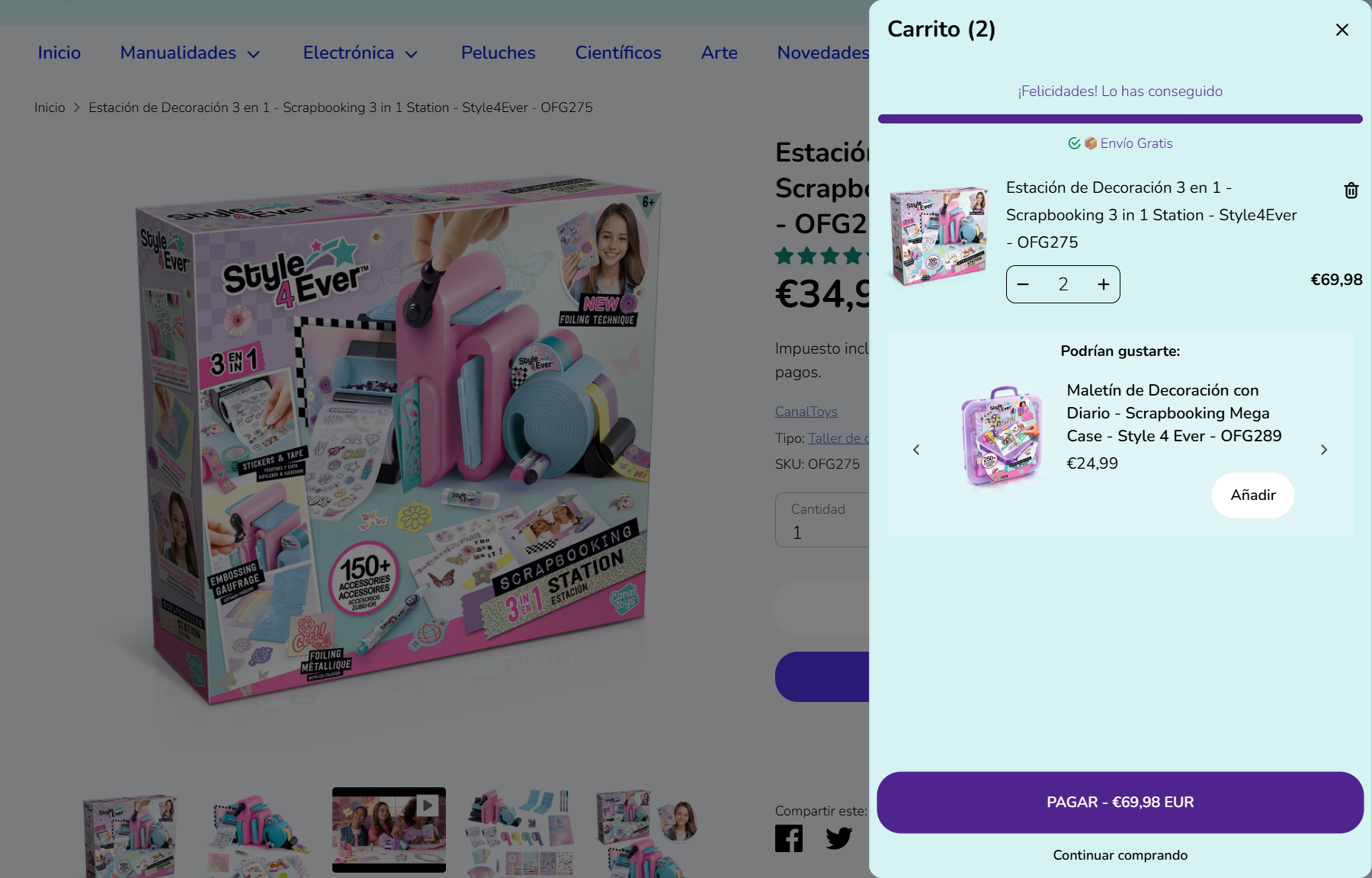
Cart drawer of Canaltoy
1.2 Disruptive cart elements
Even when your cart functionality works, poorly implemented elements, such as discount codes, pop-up notifications can create serious friction. Instead of guiding users smoothly through the checkout flow, excessive or broken components introduce confusion and cognitive overload.
Common signs include:
- Intrusive popups that interrupt users right before checkout
- Showing too many cross-sell products
- An oversized or overly prominent coupon field / discount code field
These issues become problematic because they interrupt the user’s focus and increase cognitive load. When users are forced to repeatedly close popups, it creates friction and frustration. Furthermore, presenting too many upsell offers at once overwhelms users, making it harder for them to process information and make decisions.
Specifically, a massive coupon field acts as a powerful distraction. Instead of focusing on the items, users often exit the checkout flow to hunt for codes elsewhere, which directly increases the likelihood of cart abandonment.
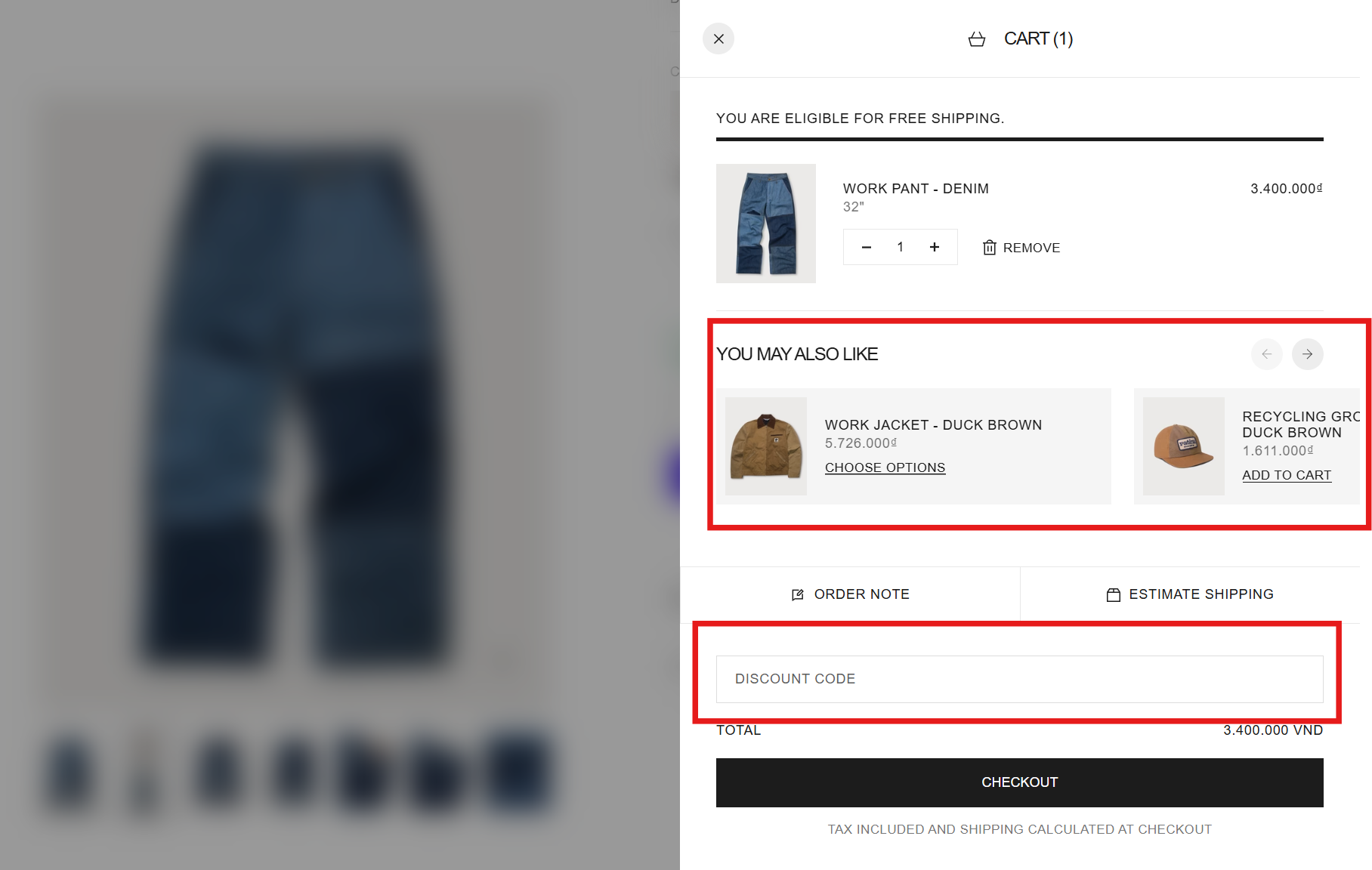
Example of a standalone cart page
How to fix it:
- Limit cross-sell products: show only 1–3 relevant items based on user behavior
- Refine coupon placement: Keep the discount code field subtle (e.g., a collapsible link) or auto-apply discounts to keep users on-page.
- Strategic pop-ups: Use popups based on user intent or timing rather than display them randomly

Wolph's cart page
👍 Good implementation example: Wolph store on Shopify automatically applies discount codes as soon as customers meet the conditions, eliminating the need for manual input. At the same time, it keeps the experience clean by displaying only one additional product, avoiding clutter and maintaining focus on checkout.
1.3 Slow cart page and broken functionality
Even the most beautiful ecommerce cart page will fail if the underlying technology is unstable. When too many third-party apps or plugins are installed, each with its own scripts and logic, they can create conflicts that directly impact load speed, responsiveness, and overall store stability.
Common signs include:
- Slow load speed: the cart takes too long to render or update
- Broken links: users are redirected to non-working pages
- Unstable behavior: cart updates fail or show inconsistent data
These issues occur because multiple plugins and scripts compete for resources. As more elements are added without proper optimization, the system becomes heavier, leading to rendering delays. Every second of Shopify cart lagging acts as a direct signal to the customer that the site might be insecure or unreliable, leading to an immediate exit. Research suggests that nearly one-third of customers will abandon their purchase and switch to a competitor if they encounter a delay in page response.
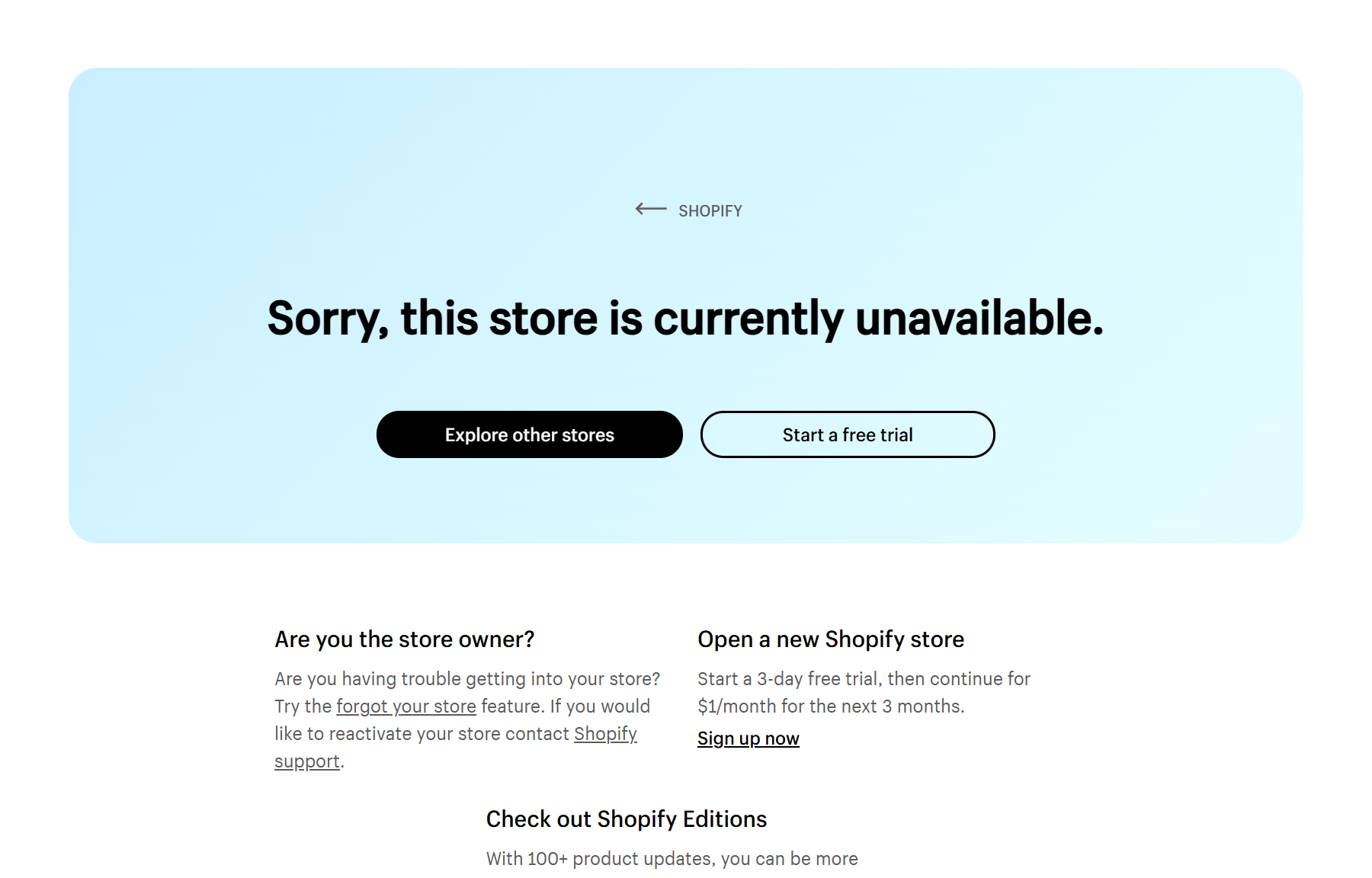
Example of a broken store's link
How to fix it:
- Limit third-party apps: only keep essential plugins to reduce conflicts
- Optimize performance: compress and streamline elements to improve load speed
- Run A/B testing: test one variable at a time to identify performance bottlenecks
- Monitor errors regularly: check for broken links weekly using tools like Shopify Broken Link Checker, especially before major campaigns
2. UI friction that confuses users on Shopify cart pages
2.1 Poor visual hierarchy
A poorly structured Shopify cart page layout can create confusion when users cannot clearly distinguish between primary vs secondary actions. Without a strong visual hierarchy, even well-designed elements fail to guide users toward completing the purchase.
Common signs include:
- Weak visual hierarchy: multiple elements appear equally important, making it hard to identify the next step Conflicting CTA buttons: similar button size and placement cause users to hesitate between actions
- Poor color contrast: key actions do not stand out from secondary elements
- Misleading product display: cross-sell products look too similar to the main item, causing users to think they are purchasing multiple products unintentionally
These issues create confusion at a critical decision point. Instead of smoothly progressing through checkout, users must pause to interpret the interface, increasing cognitive load. This uncertainty can lead to hesitation, mistakes, or even frustration.

The main product and the cross-sell one are displayed with the same size
How to fix it:
- Establish clear visual hierarchy: use high color contrast and a larger button size for the primary "Checkout" button, while keeping secondary actions in neutral tones or ghost button styles
- Separate product roles: Differentiate recommended items from the main cart using distinct background colors, borders, or smaller thumbnail sizes to prevent any "double-buy" misunderstandings.
- Strategic Positioning: Place the main CTA buttons in a fixed or prominent location (like a sticky footer on long lists) to ensure the path to purchase is always visible.
👍 Good implementation example: Shopify store Samah displays recommended products in a side section with a smaller size than the main cart content, ensuring they don’t compete for attention. At the same time, the checkout button is highlighted with a stronger color (green), a larger size, and positioned consistently at the bottom of the cart, making it stand out clearly.
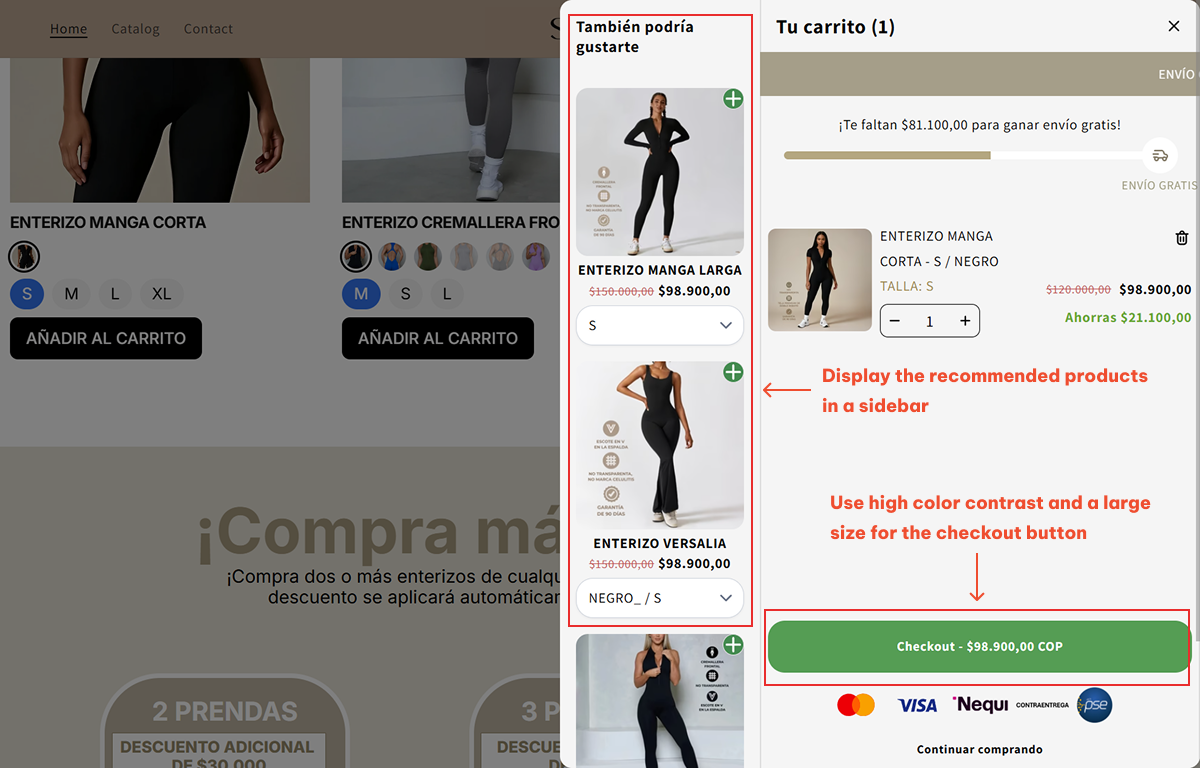
Samah's cart with clear visual hierarchy
2.2 Mobile-unfriendly cart design
In the modern e-commerce landscape, a flawed mobile cart layout is the silent killer of conversions. Many Shopify merchants focus heavily on the desktop version, neglecting the fact that a significant portion of customer shop directly from their phones.
Common signs of poor mobile experience include:
- Small touch targets: buttons are too small, too close together, obscured or not clearly visible, making them hard to tap
- Broken layout: images overflow, text is too small, or elements overlap
- Slow loading on mobile: pages take too long (more than 3 seconds) to render due to heavy assets or scripts
- Non-functional elements: CTA buttons fail to load or respond properly on mobile devices
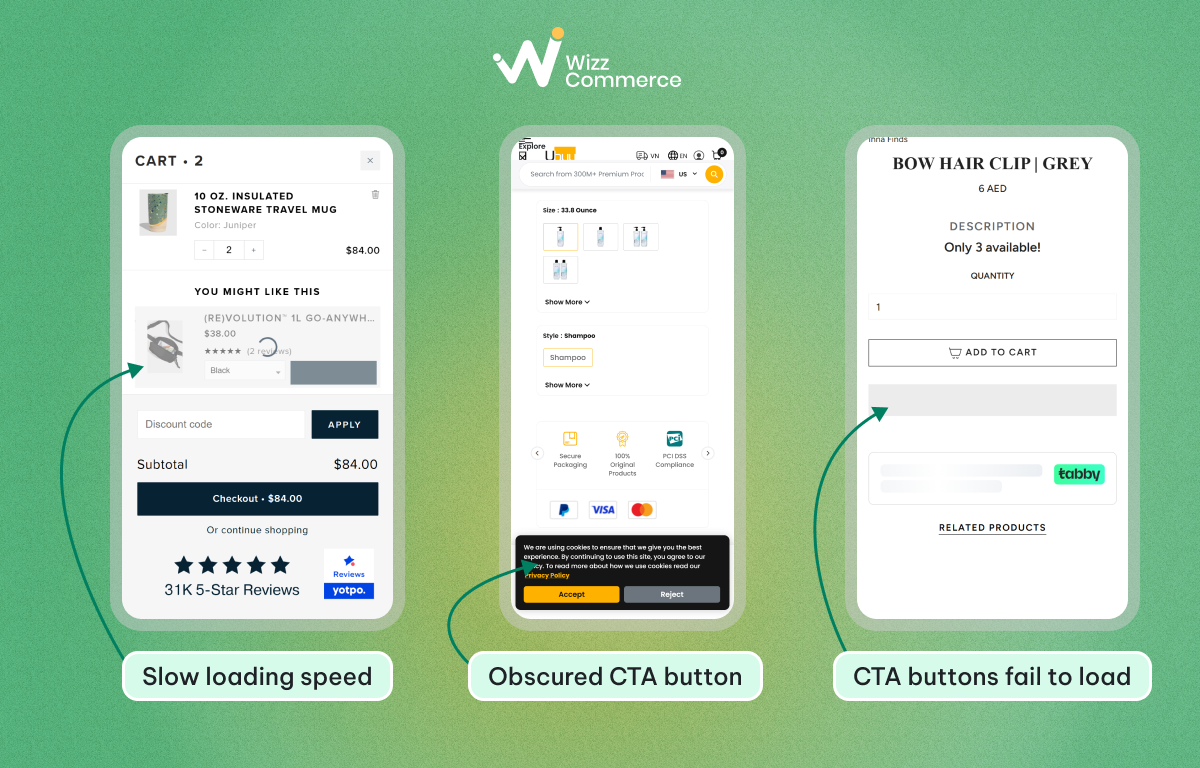
Exemple of poor mobile layout
The cause of these issues is using heavy or oversized assets that are difficult to load on mobile. Additionally, if the website does not follow a responsive web design structure, it cannot scale to fit different screen sizes.
Failing to optimize the design Shopify cart page for mobile leads to devastating consequences. Statistics indicate that 53% of visitors will abandon a page if it fails to load within three seconds on mobile. To make matters worse, site performance issues drive away 79% of dissatisfied customers, who state they probably won't buy from that store again.
How to fix it:
- Use mobile-optimized themes: choose designs built for strong mobile experience
- Remove unnecessary apps to lighten the source code and boost loading speeds.
- Optimize assets: compress images and limit heavy elements to speed up load time
- Adopt responsive web design: Ensure your site structure fluidly adapts to any screen size.
- Implement a sticky add to cart button so that it remains fixed on the screen as users scroll
👍 Good implementation example: Uncle Ted's Shopify store features a cart page that performs flawlessly across all devices. By maintaining a clean layout and keeping product page images under 100KB, they achieve lightning-fast loading speeds of under 2 seconds.

Uncle Ted's cart page on different devices
3. Cognitive friction that stops users from completing purchases
3.1 Lack of trust
Trust is a critical factor on any Shopify cart page, yet many stores fail to provide enough signals to reassure users at this stage. When a customer reaches the cart but feels uncertain about the site's credibility, they are unlikely to hand over sensitive information.
Common signs of lack of trust include:
- Lack of price transparency: missing or unclear shipping cost and additional fees
- No visible security badges or payment icons in the cart
- Return policy and commitments are not displayed or hard to find
These gaps create a trust breakdown at a crucial decision point. Research indicates that 61% of shoppers will abandon their carts immediately if they don't see any trust logos or safety signals. Without these visual cues, users perceive a high risk of fraud or data theft, leading them to exit the site in favor of a competitor who prioritizes cost transparency and consumer protection.
How to fix it:
- Ensure cost transparency: clearly display product price, shipping cost, and any additional fees
- If shipping data is not yet available, include a clear note stating, "Shipping costs will be calculated at checkout" so customers aren't surprised when they see total cost.
- Display security badges and payment icons prominently near the checkout button to offer immediate payment assurance.
- Make your return policy and satisfaction guarantees easy to find and simple to understand.
👍 Good implementation example: Lumea's product pages excel in cost transparency and credibility. By placing the shipping cost, return policy, and trusted payment icons directly adjacent to the "Add to Cart" button, they provide immediate payment assurance

Trust signals are displayed near CTA button
3.2 Lack of interaction feedback
Interaction feedback is the dialogue between your store and your customers. When a Shopify cart page lacks real-time updates or motivating cues, the experience feels static and unresponsive, making it harder to move forward with confidence.
Common signs include:
- Missing cart progress bar: no indication of how close users are to rewards like free shipping or discounts
- Absence of FOMO signals: no urgency cues, such as recent sale notification or low stock alert to encourage faster decision-making
- Static interface: The cart doesn't react or update visually when items are added or quantities change.

Example of a cart that lacks of interaction feedback
The consequences of poor interaction feedback are a direct hit to your average order value (AOV). Without a visual goal, like a progress bar showing that they are only $10 away from free shipping, customers have no psychological incentive to add more items to their cart.
How to fix it:
- Add a cart progress bar: show how much more users need to spend to unlock benefits
- Effective Shopify cart page customization: Use trust badges combined with FOMO messages or notifications to nudge hesitant shoppers.
- Optimize real-time feedback: Ensure every action, from changing a quantity to applying a code, triggers an immediate and clear visual confirmation.
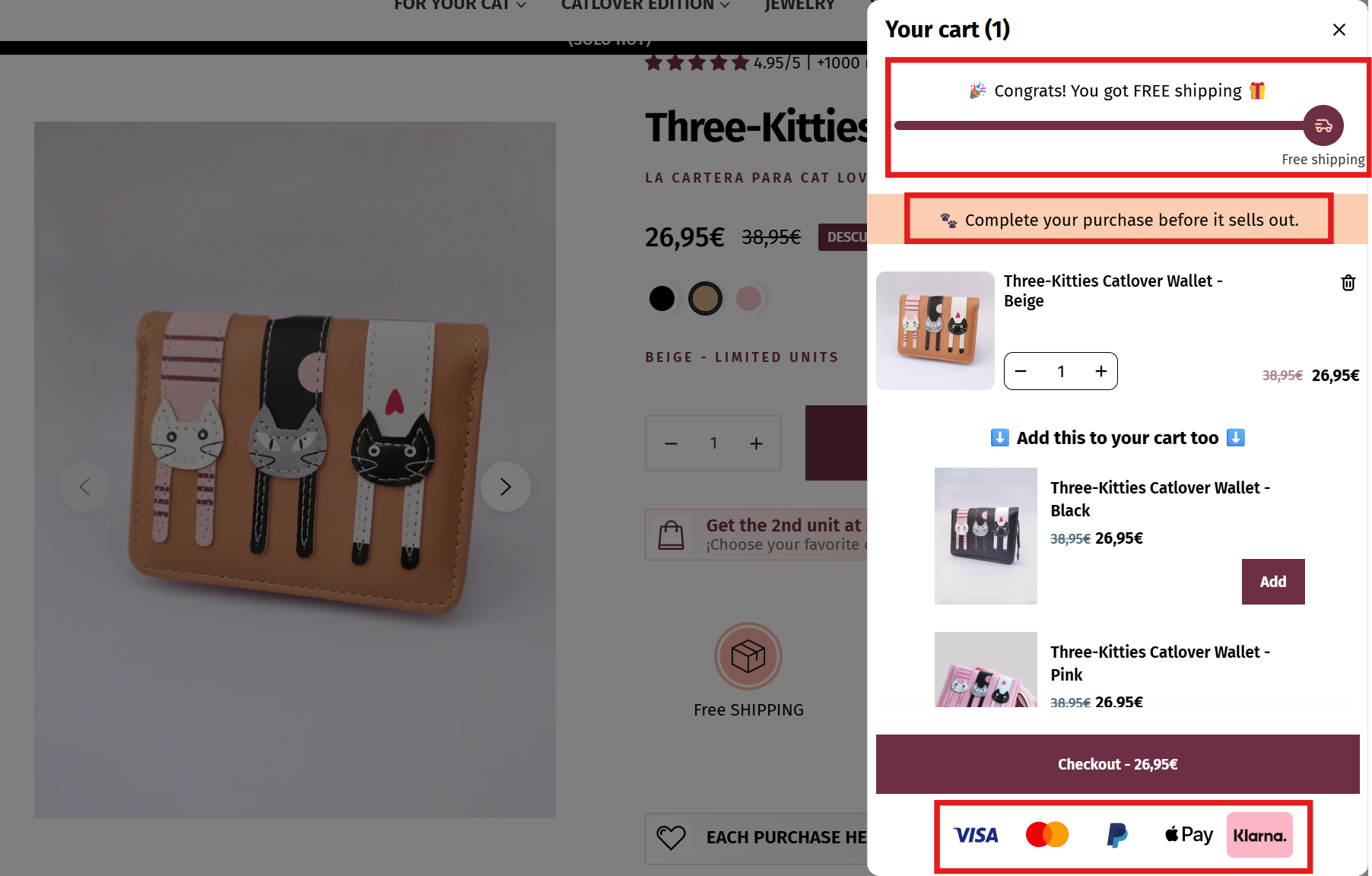
A Shopify shopping cart page that combine progress bar, FOMO message and trust badge
3.3 Forced commitment too early
Forcing a user to commit before they are ready creates immediate checkout friction and a major flow interruption. While merchants often aim to gather as much data as possible for future marketing, many consumers are not willing to share their personal details.
You might be losing customers if your store exhibits these signs:
- Mandatory login requirement: Forcing users to sign in or go through account creation before they can even view their final total.
- Excessive form fields in the cart: Demanding too much personal information right from the cart page, which is time-consuming and invasive.
These issues create unnecessary friction because they demand time and personal information before trust is fully established. As a result, they interrupt the customer journey, increase user hesitation, and often leads to abandonment.

Shopify store Flourist offer rewards for those who create an account
How to fix it:
- Enable guest checkout: allow users to complete purchases without login requirement
- Minimize form fields: only ask for essential information at each step
- Instead of forcing commitment, provide a discount or a special offer if customers choose to subscribe or create an account voluntarily
4. How to measure Shopify cart page optimization
Effective optimization starts with data; here is how to analyze your store's health before you decide to edit Shopify cart page layouts or features.
4.1 Key metrics to track
To determine the success of your optimization efforts, you must rely on concrete data rather than intuition. By analyzing performance metrics from Shopify analytics and running systematic A/B tests, you can pinpoint exactly where users lose interest. This data-driven approach allows you to visualize the entire checkout flow and identify the specific hurdles that prevent a successful transaction.
To get a clear picture of your store's health, keep a close eye on these essential indicators:
- Cart abandonment rate: The percentage of users who add items to their cart but leave before starting checkout.
- Conversion rate: The ultimate goal; tracking how many visitors actually complete a purchase after interacting with the cart.
- Conversion rate breakdown: Understanding if users are spending too much time on which session of the page. This helps you find hidden cart drop-off points.
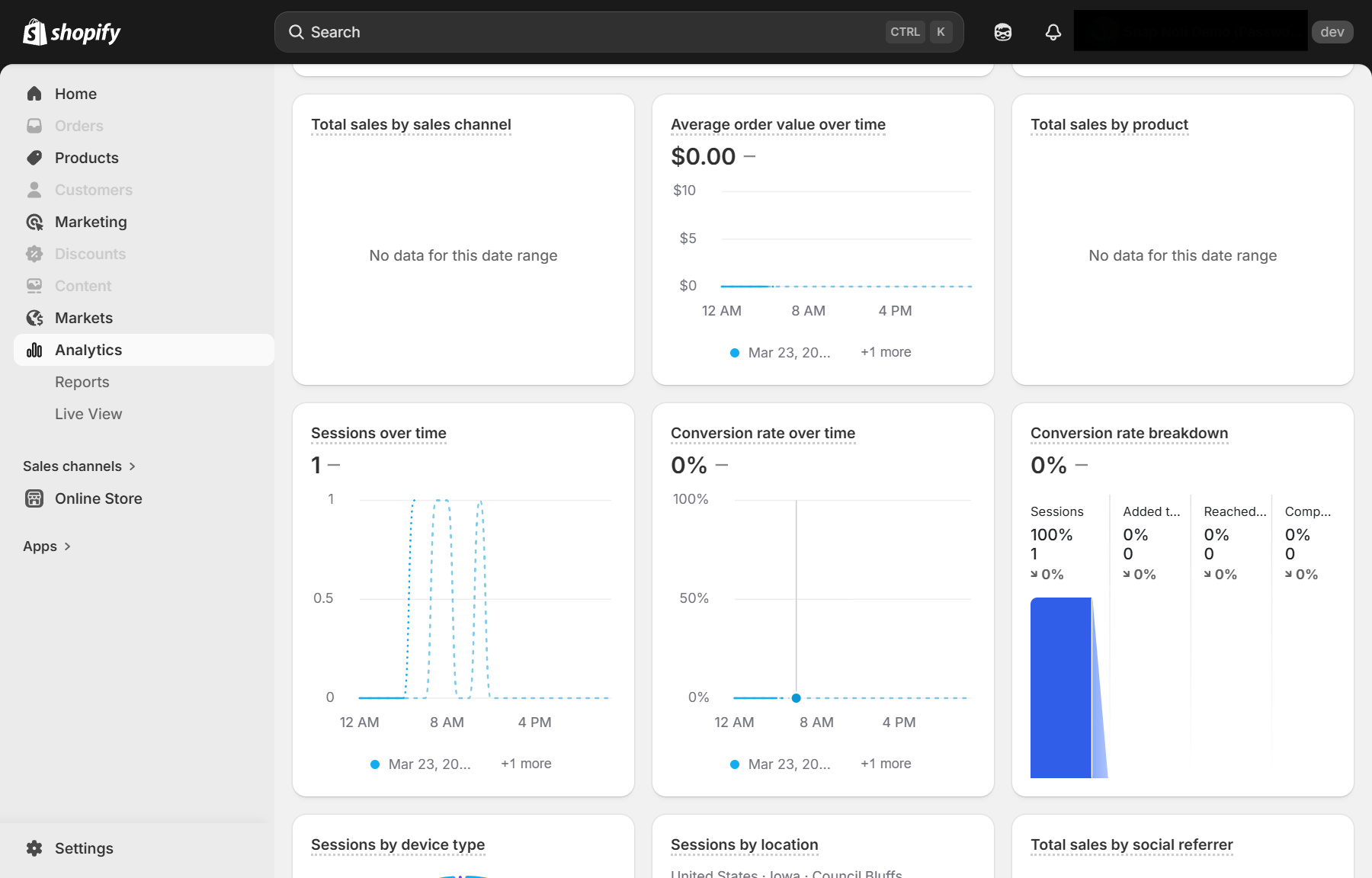
Some indicators in Shopify Analytics
4.2 Collecting customer feedback
Quantitative data tells you what is happening, but insights explain why users leave cart page. To truly identify Shopify cart drop-off points, you must actively solicit direct input from your audience. Implementing a well-timed customer survey can reveal friction points that analytics might miss, such as confusing terminology or a missing payment method that users specifically desire.
- Non-intrusive placement: Use a small slide-in or a post-purchase thank you page to gather data without interrupting the buying momentum.
- Open-ended questions: Include at least one field where users can describe their specific frustrations in their own words.
- Incentivized participation: Offer a small discount or entry into a giveaway to encourage users.
Conclusion
An underperforming Shopify cart page is rarely the result of a single issue, but rather a combination of technical friction and broken trust. From unresponsive mobile layouts to hidden costs that trigger hesitation, these errors act as silent conversion killers. By identifying and fixing these critical mistakes, you transform your cart from a major drop-off point into a seamless gateway for your customers.
FAQ (Frequently asked questions)
What is the difference between cart drawer and cart page?
A Shopify cart drawer (or Shopify mini cart) is a sliding side panel that allows customers to view items without leaving the current page. In contrast, a cart page is a dedicated full-screen URL where users review their order before proceeding to the final checkout step.
What are the most common mistakes on a Shopify cart page?
The most frequent Shopify cart page issues include hidden fees that surprise users, broken links, and cart errors in the layout. Additionally, a slow cart page caused by unoptimized assets significantly increases abandonment rates, as users demand speed and pricing transparency.
Do Shopify carts expire?
Yes, abandoned or inactive shopping carts are programmed to clear automatically, typically within a 10 to 30-day window from the moment they are first created.