






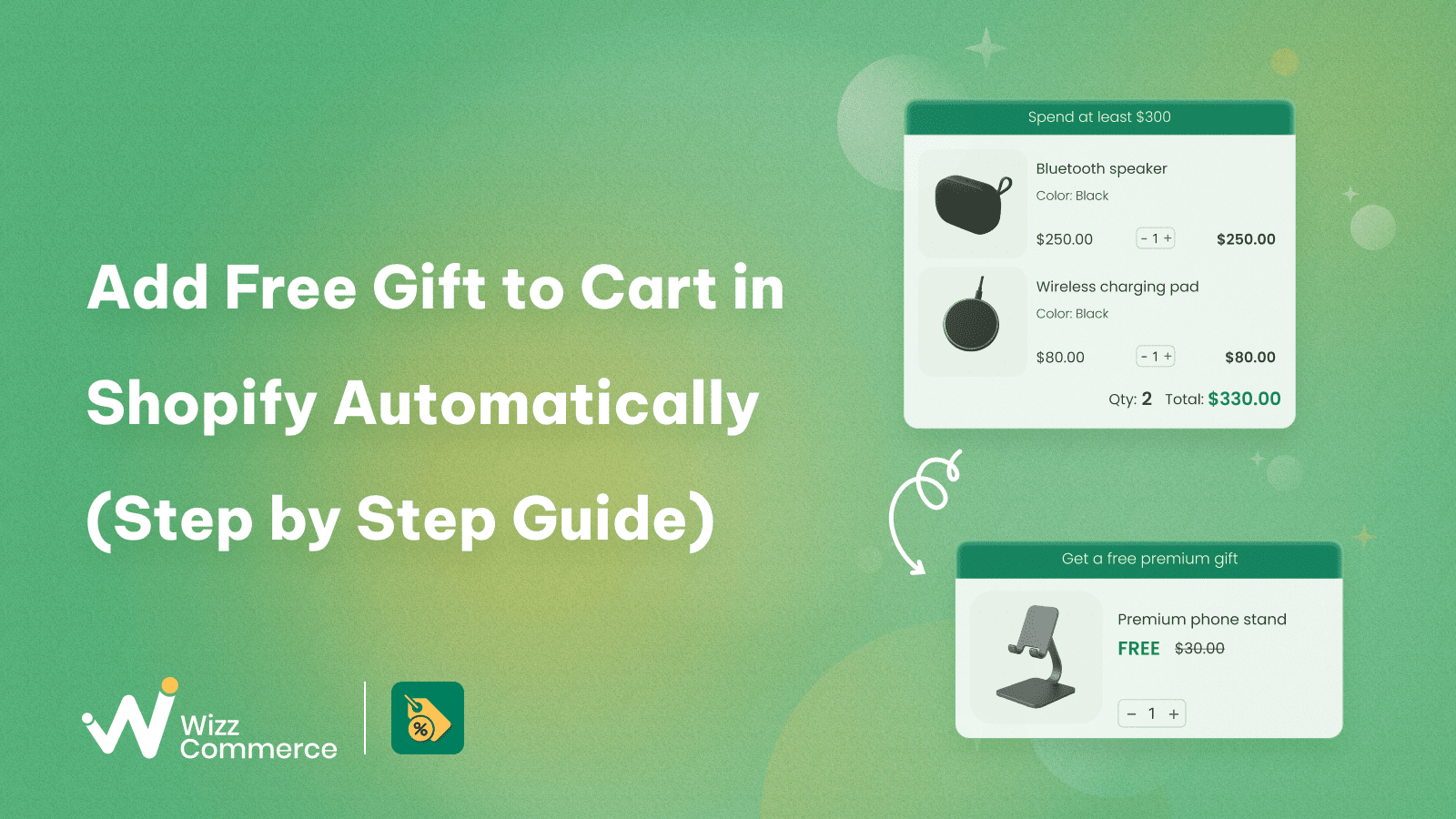
TL;DR
Automatically adding free gifts to your Shopify cart increases AOV and enhances the shopping experience. While custom code or native discounts work, dedicated Shopify apps offer the easiest automation. To protect profit margins, set strategic spend thresholds, choose complementary products, and strictly control discount stacking.To add a free gift to cart automatically in Shopify, you first need to define when shoppers qualify for the offer. When those conditions are met, the complimentary product is added without requiring the customer to select it manually. Most online stores do this using a Shopify free gift app, although custom code and native discount features can also be used in certain situations.
In this guide, you'll learn how automatic free gifts work, the different ways to implement them in Shopify, and best practices for preventing common issues that can affect customer experience.
1. Understanding how to add free gift to cart in Shopify
1.1 What are free gifts on Shopify?
A Shopify free gift is a promotional item that customers receive at no additional cost when they meet defined conditions. The gift can be added automatically to the cart or unlocked after a shopper qualifies for the offer.
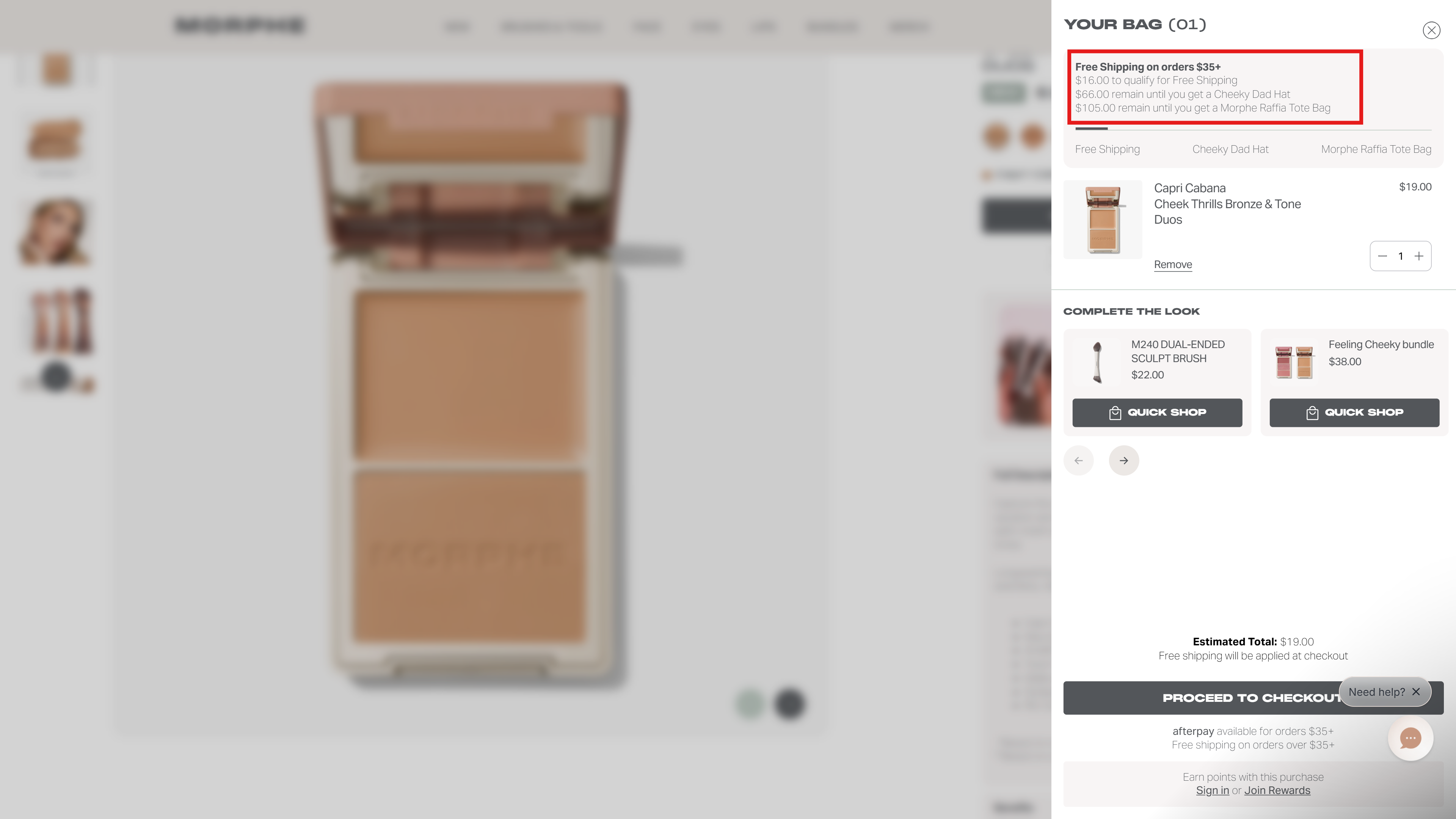
Reach the required spending thresholds to get free shipping, a hat or a tote bag.
Shopify bonus item offers can take different forms, such as:
- Free samples
- Trial products
- Accessories
- Bonus items, etc.
You can explore this article for a deeper understanding of BOGO, gift with purchase and more.
1.2 Automatic free gift vs Manual gift selection
Free gift promotions on Shopify typically use one of two approaches below:
- Auto add free gift: Adds the gift automatically to the cart once the customer qualifies.
- Meanwhile, manual gift selection: Lets buyers choose their preferred gift from a list of eligible options.
2. Pros and cons of adding a free gift to cart automatically
2.1 Benefits
Higher average order value (AOV)
Tied to a spending threshold, Shopify gift with purchase encourage buyers to increase their cart value to unlock the reward. When shoppers are only a few dollars away from qualifying, adding another product seems more worthwhile than missing out on the gift.
Less friction
Once the requirements are satisfied, the gift appears in the cart automatically. The promotion becomes easy to understand and claim.
Stronger perceived value
Unlike a traditional coupon that lowers the order total, Shopify gift with purchase adds extra value to an order with a complimentary product. Because shoppers can see the reward directly in the cart, free gifts tend to be more tangible and engaging than percentage-off or fixed-amount discounts.
Product discovery and sampling opportunities
Spend threshold gifts also help introduce purchasers to new products they have not tried before. Customers can experience more of the brand and consider buying in the future.
2.2 Potential risks
Profit margin loss
A gift promotion needs control. If the extra revenue does not outweigh operational costs, overall profitability can decrease.
Cart conflicts
Cart gift rules can sometimes interfere with other discounts, bundles, or cart incentives. Poor configuration can leave customers disappointed and reduce campaign effectiveness.
Promotion abuse
Some shoppers may place multiple orders or exploit promotion rules to receive more gifts than intended. Without clear limits, the cost of the campaign can increase quickly.
Inventory issues
Popular gift campaigns can use up inventory faster than expected. Running out of gift stock may force merchants to modify or pause the promotion.
3. Different ways to add gift products to cart in Shopify
There are three common ways to implement a giveaway item on Shopify, including:
3.1 Using Shopify native discounts
Shopify built-in discount features can support simple gift-with-purchase pricing (e.g. Buy X get Y). Shop owners can create and manage promotions directly within Shopify without installing additional tools.
However, native discounts offer less flexibility than dedicated gift with purchase solutions. Stores with more complex setups, such as advanced eligibility rules, tiered gifts, custom messaging, or promotion controls, may need an app or custom implementation.
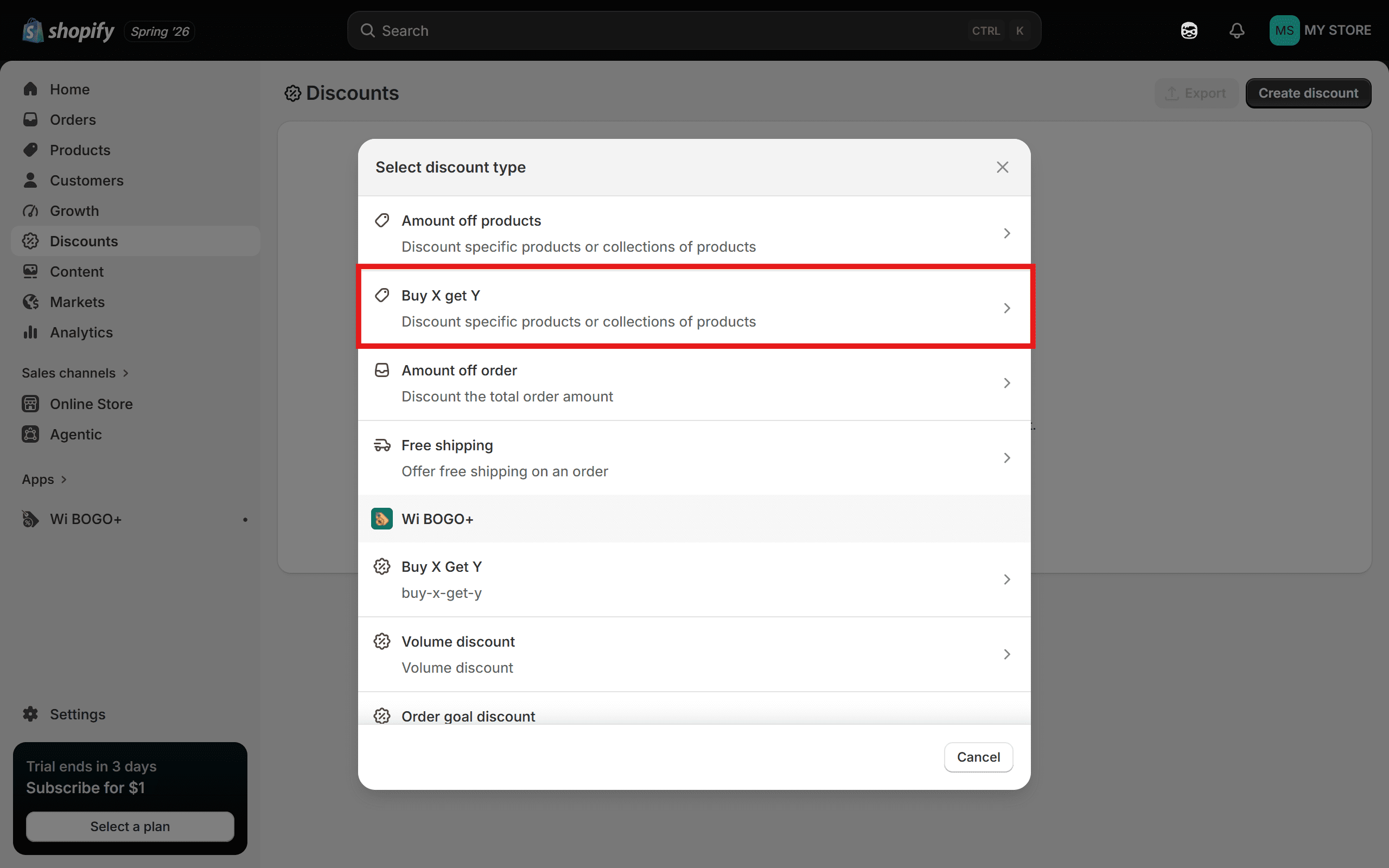
Choose Buy X get Y to create free gift campaigns without extra tools.
3.2 Using custom code
For stores that need complete control, developers can use Shopify theme code to build a custom free gift solution. This allows merchants to set highly specific rules and automatically add or remove gifts based on cart conditions.
The trade-off is ongoing maintenance. Custom code must be tested whenever the theme, cart drawer, discount setup, or third-party apps are updated.
3.3 Using Shopify apps
For most merchants, a dedicated Shopify free gift app is the easiest way to automate gift promotions without coding. This approach offers the best balance between flexibility and ease of use. Third-party apps can offer several features, such as:
- Qualification rules based on cart value, specific products, collections, or customer segments
- Support multiple promotion types (e.g. Spend-and-get, buy X get Y)
- Automatic gift addition when eligibility requirements are met
- Campaign scheduling with start and end dates
- Tiered gift offers at different spending levels
- Cart messages and progress bars to track the progress toward earning a gift
- Safeguards: Duplicate gift prevention, inventory controls, and automatic gift removal
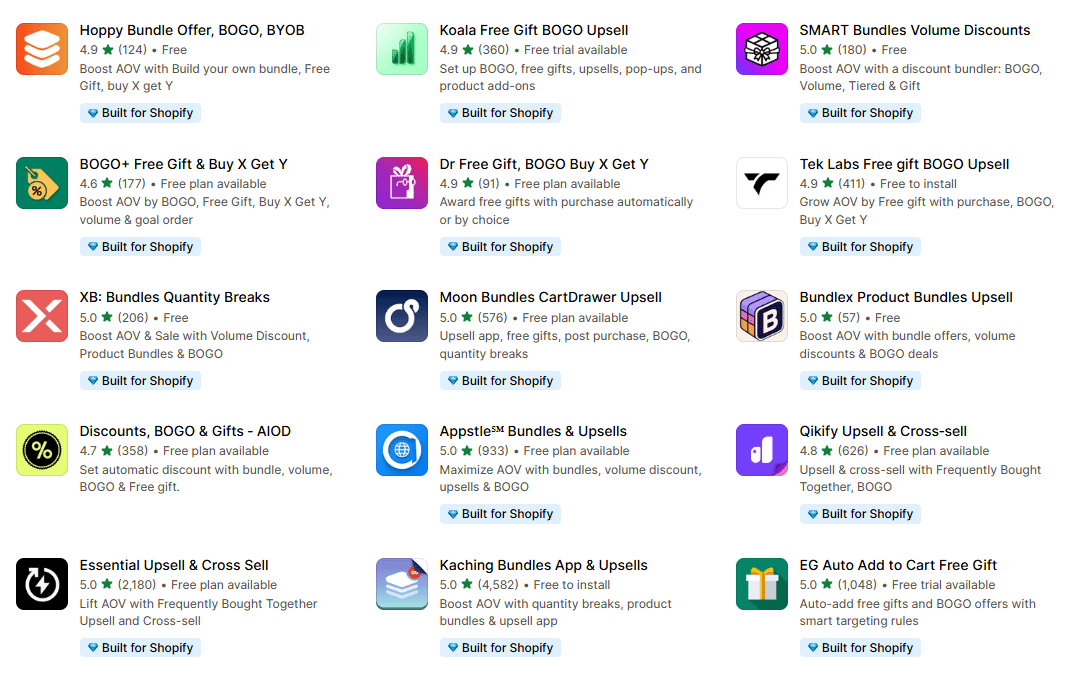
Find Shopify apps to help you create cart valur free gift.
- Quick summary: The table below summarizes the main differences between the three methods:
4. How to add automatic free gift in Shopify cart (using apps)
For most Shopify stores, using a dedicated app is the fastest and most reliable way to automate free gift promotions. Instead of relying on manual processes or custom development, merchants can configure gift rules, eligibility conditions, and cart triggers through an intuitive interface. For this tutorial, we'll use BOGO+ Free Gift & Buy X Get Y - one of the best apps for automatic Shopify free gifts.
4.1 Step 1: Install BOGO+ to your Shopify store
Access this link to install the BOGO+ app. Once installed, you can find it under Apps in the navigation menu.
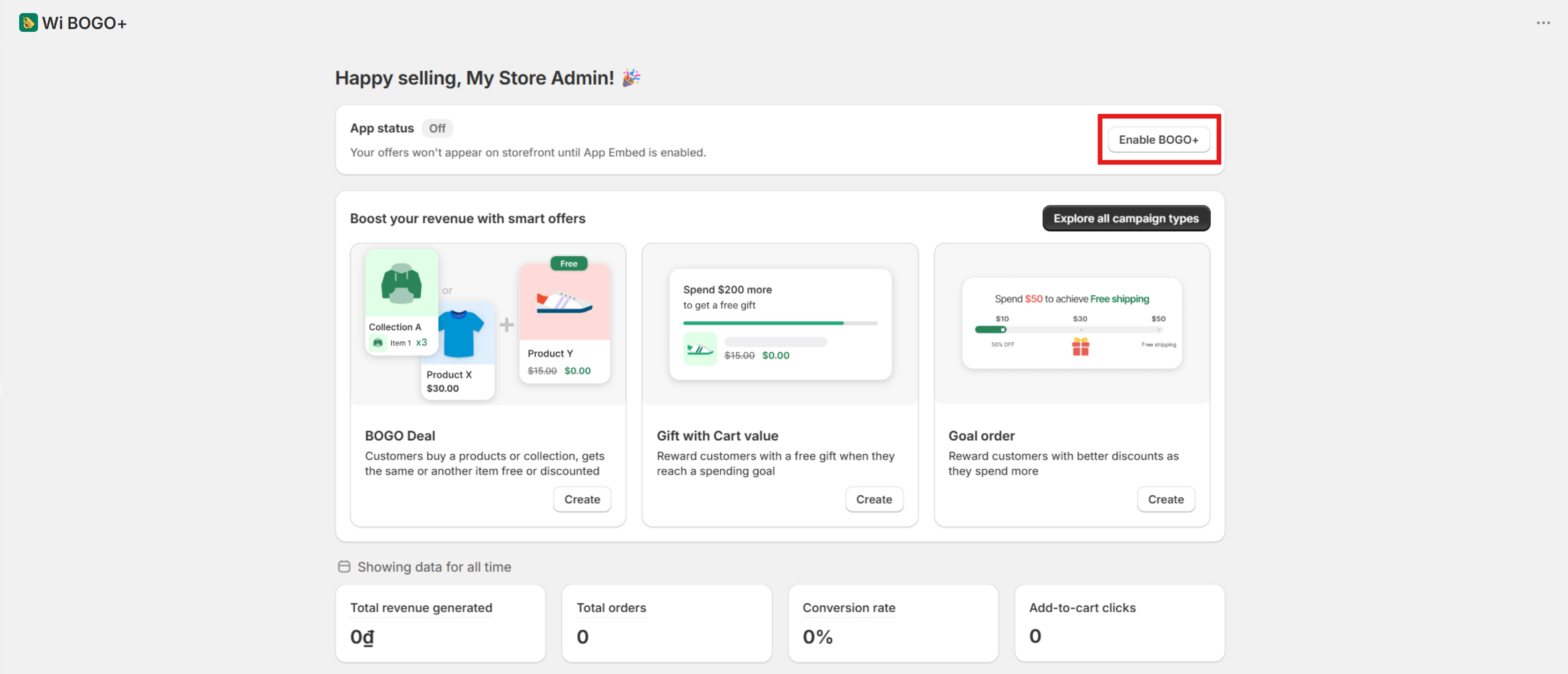
The main dashboard of BOGO+ app.
Make sure you have already enabled App Embed so we can proceed to the next step.
4.2 Step 2: Create the gift with purchase campaign
BOGO+ offers you a wide range of campaigns, including:
- BOGO deal: Buy an item, get another one free or at a discount.
- Gift with cart value: Reward customers with a spend threshold gift when they spend a specific amount.
- Goal order: Offer bigger discounts the more money a customer spends.
- Volume discount: Give a price reduction when customers buy more items.
- Discount by item price: Discount the cheapest or most expensive item in the cart.
To create a free gift campaign, find the card labeled Goal order value. Click the Create button to begin setting up your promotion.
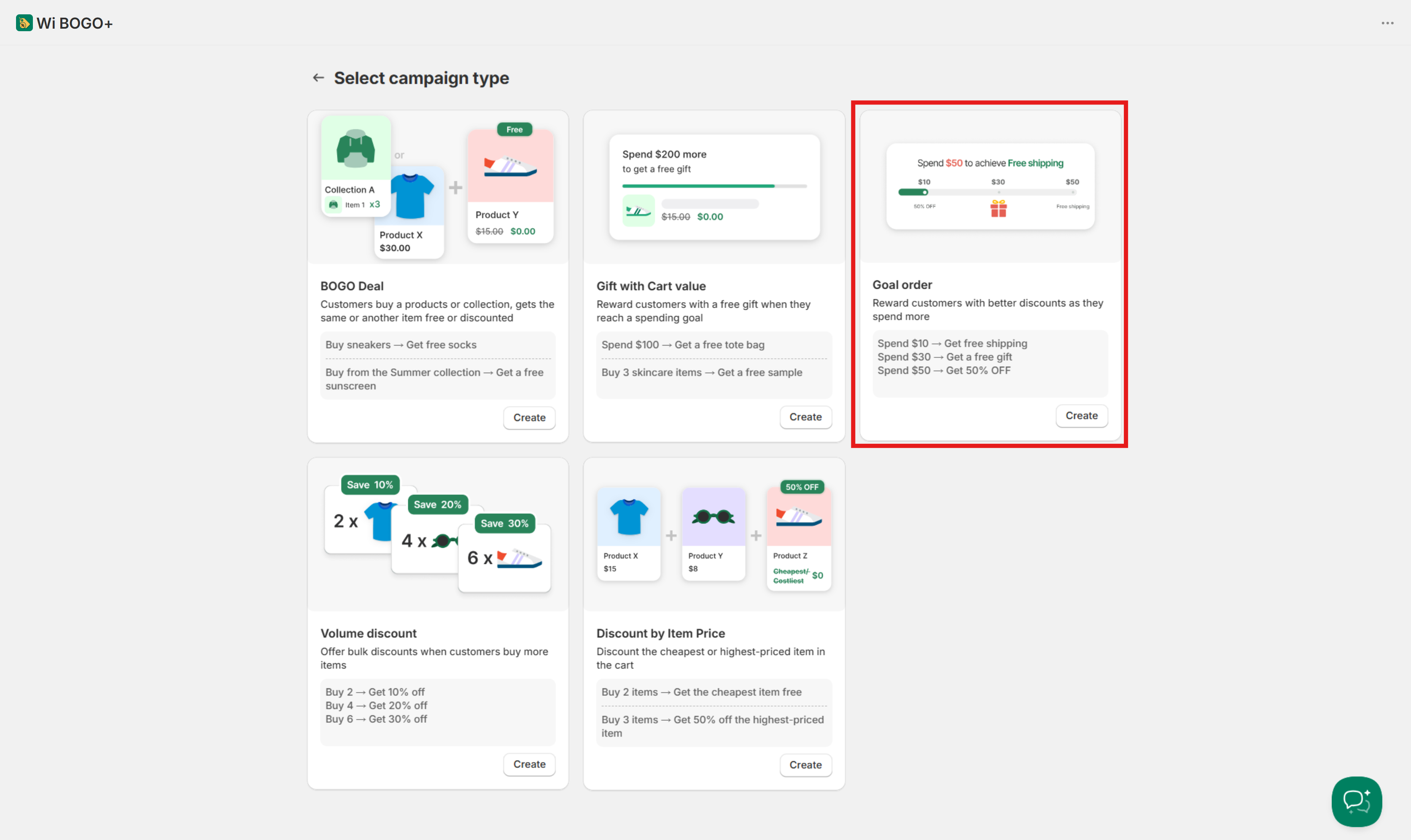
Choose Goal order to start your promotion.
Want to set up other offers, such as BOGO? We've already made a comprehensive guide for you!
4.3 Step 3: Set up your campaign information
After selecting the gift with purchase for your online store, you need to adjust the basic details in the following fields:
- Campaign status: Toggle the switch to activate or deactivate your campaign.
- Campaign name: Enter a name for internal tracking. Only you will see this, it is hidden from visitors.
- Discount label: This label will be visible to your customers in their cart and at checkout.
- Active dates: Select your time zone, then set the exact start date and time. If your promotion is time-limited, check the Set end date box to schedule when it will stop.
Look at the Preview on the right side to monitor adjustments as you made them, and then click the Next button at the bottom right to continue.
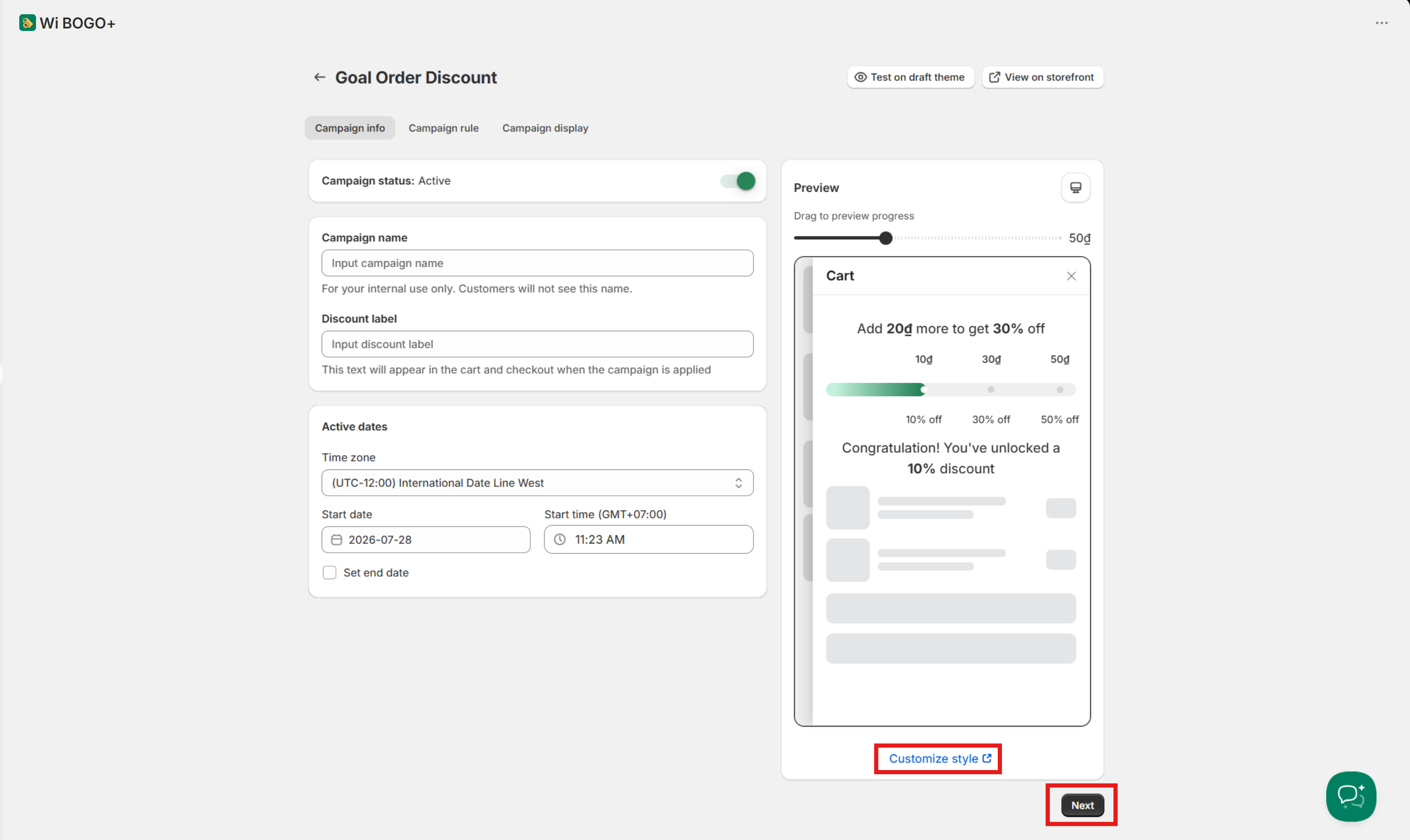
Set up campaign information. Preview on the right side.
Note: You always select Customize style to redirect to Appearance page.
4.4 Step 4: Configure cart gift rule
Next, you will define the exact conditions customers must meet to trigger the promotion, as well as the details of the reward itself.
- Customer purchases: Select qualifying items ( All products or Specific collections) and exclude any non-participating products.
- Minimum purchase requirements: Set the minimum requirement by Total cart value (amount spent) or Total item quantity (items in cart).
- Discount tiers:
- Min cart value / Min item quantity: Enter the minimum threshold required to unlock each tier.
- Define Reward type among Order discount, Shipping discount and Gift.
- Reward value: Choose the discount type and enter the value.
- When customers reach multiple tiers: Decide between Only give the highest tier (Recommended) or Give rewards from all tiers.
- Expand Advanced settings fields to manage further settings:
- Eligibility: Choose to target all customers or specific segments.
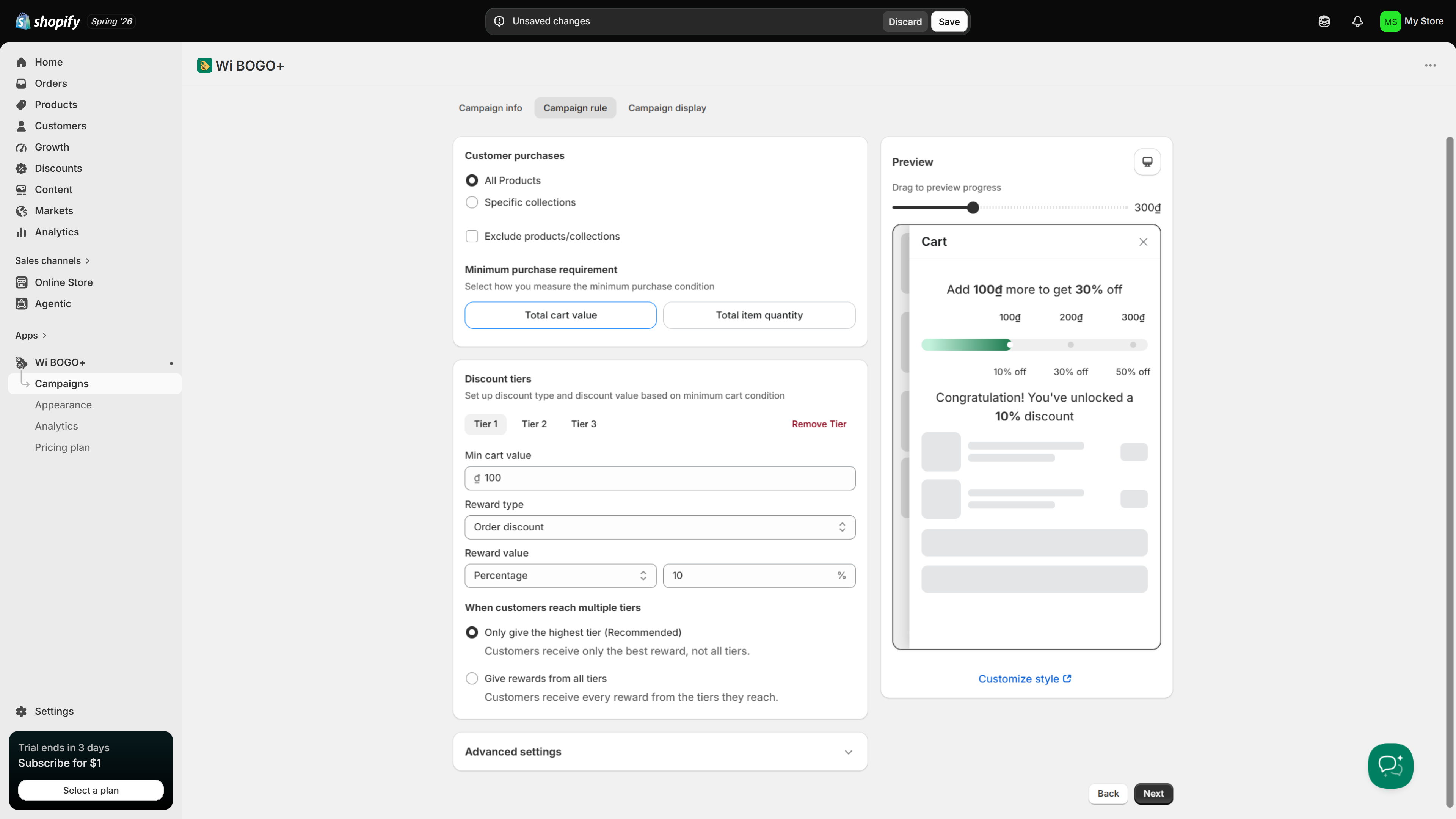
Set up campaign rule.
4.5 Step 5: Customize bonus item display
In the Campaign display tab, you can design how shoppers will receive their reward.
- How customers receive the reward: Choose one of the following delivery methods:
- Auto add gift to cart: Automatically add the gift to the buyer's cart. (Click Edit widget to adjust its appearance)
- Let customers choose their gift: Enable purchasers to pick their reward.
- Apply code to get gift: Enter a discount code to unlock the gift.
- Show promotion on your store: Enable and configure display widgets such as the Progress bar in Cart Drawer/Cart page to show customers how close they are to unlocking the offer.
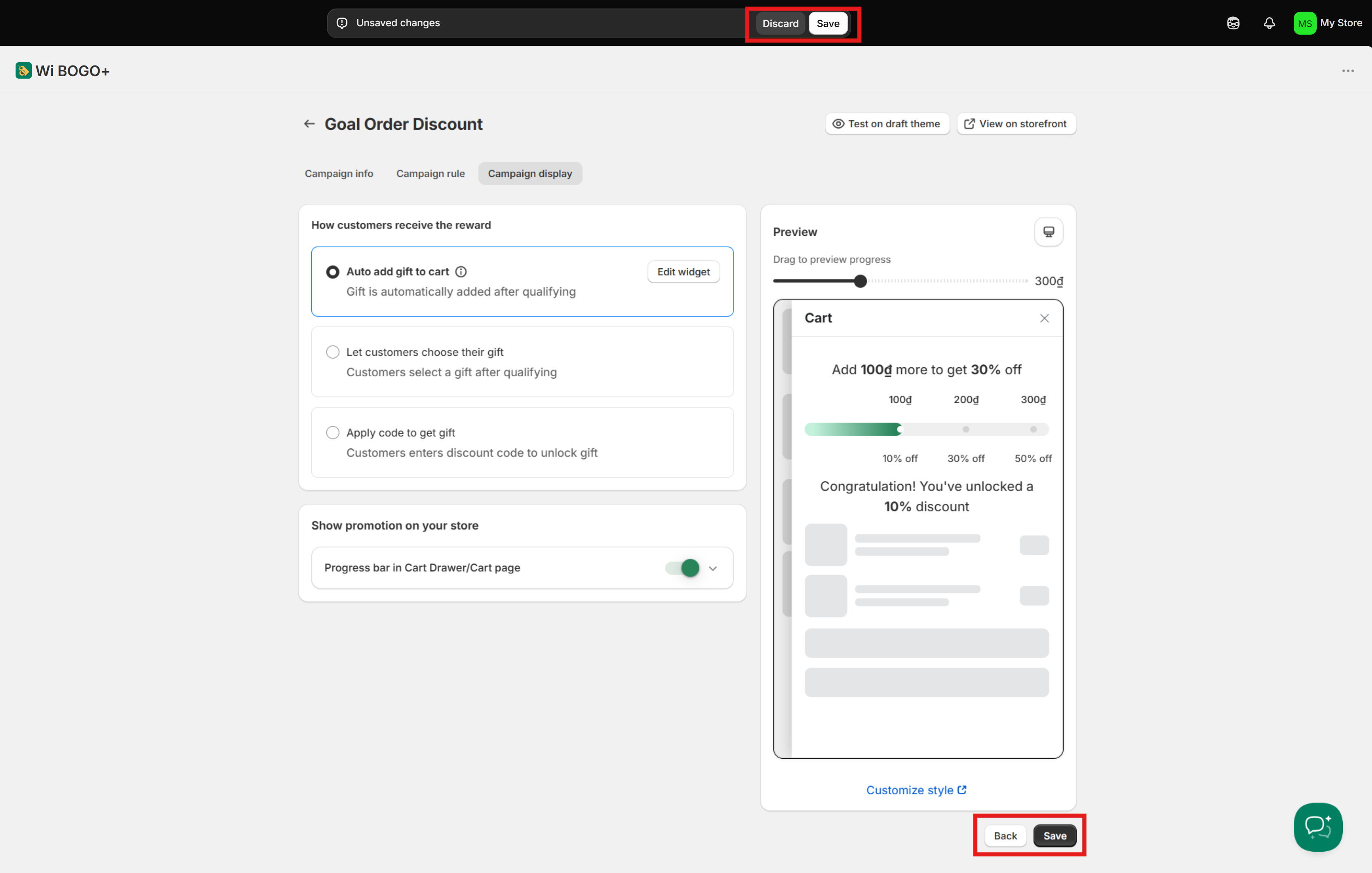
Set up campaign display.
To finalize your setup and launch the campaign:
- On Unsaved changes bar at the top of the screen, decide:
- Save to apply and store your recent change.
- Discard to cancel them and revert to the previous settings.
- You can also hit the Save button at the bottom right to complete.
5. Best practices for Shopify free gift with purchase campaigns
5.1 Set the gift threshold to protect margin
A bonus item offer should encourage larger orders without reducing profitability. Before setting a threshold, consider the cost of the gift, fulfillment, and shipping. A low-cost sample with high perceived value can be more effective than offering a large price reduction.
5.2 Choose gifts that match purchase intent
The best gifts should strengthen the original purchase. Slow-moving stock can sometimes be repurposed as a gift, but an unwanted gift may reduce perceived value.
- A skincare sample pairs naturally with beauty products.
- A travel pouch fits well with luggage or travel accessories.
5.3 Prevent duplicate free gifts in the Shopify cart
Customers should only receive the intended number of gifts. Set clear limits and ensure the same gift cannot be added repeatedly through cart updates, page refreshes, or other shopping actions.
5.4 Manage giveaway item inventory before launch
Monitor gift stock separately from regular products and decide how the promotion should behave when stock runs out. You may choose to pause the campaign, switch to an alternative gift, or remove promotional messaging until inventory is replenished. To avoid overselling, limited seasonal gifts should have a campaign end date and a safety stock.
5.5 Control discount stacking
Test gift with purchase with discount codes, bundles, subscriptions, and free shipping offers. Decide whether promotions should be allowed to stack or remain mutually exclusive.
5.6 Track performance beyond gift redemptions
A free gift promotion is not successful simply because many buyers claim gifts. Measure key metrics that show both revenue impact and profitability:
- Average order value - Did customers spend more to qualify for the gift?
- Conversion rate - Did more visitors complete a purchase?
- Gift redemption rate - How often was the gift claimed?
- Threshold completion rate - How many shoppers reached the spending requirement?
- Revenue per visitor - Did the promotion generate more revenue from site traffic?
- Profit margin - Did the additional sales offset the operational costs?
Compare the results to a period or audience without the offer if possible.
6. Troubleshooting Shopify free gift auto-add issues
6.1 Gift not adding to cart automatically
First, verify that the cart meets all promotion rules. The required subtotal may be calculated after discounts, the shopper may need to be logged in, or the qualifying product may not match the selected collection.
Next, confirm that the gift is in stock, published where needed, and correctly selected in the app settings.
If settings appear correct, check both the cart page and cart drawer.A theme of slide carts or another cart app may prevent the cart gift rules from updating correctly.
6.2 Gift adds twice or does not remove when eligibility changes
A duplicated Shopify free gift in cart usually signals repeated cart requests, missing quantity limits, or overlapping promotion tools. Limit the gift quantity and avoid running multiple promotions. When a shopper no longer qualifies for the offer, the app or custom code should recheck eligibility and remove the complimentary product or its free pricing.
6.3 Gift appears in cart but is not free at checkout
When a gift is added to the cart but still has a price at checkout, the discount logic may not work. Review the discount settings and confirm that the correct item or variant is included. Also, ensure no other rules, markets or active promotions are overriding the offer.
Complete a test checkout rather than relying on cart labels alone to reflect the final checkout price.
Conclusion
Done well, adding automatic free gifts can help increase order value and create a more rewarding shopping journey. The key is to choose a setup that fits your store's needs and keep the promotion simple to understand.
Before launching, make sure your gift rules, inventory, and discount settings work together seamlessly. A well-executed gift product campaign should feel effortless for shoppers while remaining profitable for your business.
FAQs
Can Shopify automate free gifts in the cart?
Yes. Shopify stores can automatically apply a gift product through Shopify built-in discounts, an app or custom cart logic. Apps are usually the simplest no-code option for merchants.
Why is my Shopify gift with purchase not adding to the cart?
Common causes include unqualified spend or product rules, an out-of-stock gift, unpublished product settings, customer-tag restrictions, or discount conflicts. In some cases, a theme's cart drawer may prevent the gift logic from triggering correctly.
Do I need a Shopify app for free gift auto add?
No, but Shopify apps are often the easiest method. They can handle automatic gift insertion, promotion rules, scheduling, customer eligibility and ongoing management from a single interface.
Can Shopify automatically apply a free gift at checkout?
In most setups, the gift is added to the cart before checkout. It allows customers to see the reward earlier and helps ensure the promotion works as expected.